
In short
- By default, Google and Microsoft 365 do not sync contacts with each other.
- A CSV file copies your contacts once. Google's Outlook add-in runs on Windows.
- To keep both accounts current, use a sync that also finds duplicates.
You use Gmail for personal mail and Microsoft 365 at work. Add a client in Google and Outlook does not have them.

Why Google and Microsoft 365 don't sync contacts
Google keeps contacts in Google Contacts, behind Gmail and Android. Microsoft keeps them in Exchange Online, behind Outlook and Microsoft 365. Google and Microsoft do not sync contacts with each other by default.
Both can move contacts once, as a CSV or vCard file. But a file is a snapshot. When you edit a contact after exporting it, the two copies differ.
Your phone can make the problem look solved. It can show contacts from several accounts in one list. But showing two accounts together is not a sync. The same person can still appear twice.
Built-in ways to sync Google and Outlook contacts
There are two ways to get contacts across without extra software. Each solves part of the problem.
Export a CSV from Google and import it into Outlook
This is the right tool for a one-time move, such as when you leave Gmail. It is free.
- Open Google Contacts on a computer. Tick the contacts to copy, or choose Selection actions, then All.
- At the top right, click More actions, then Export.
- Choose Outlook CSV and click Export. Save the file.
- In Outlook on the web, open People. Click Manage contacts, then Import contacts. In the new Outlook, click Import contacts in People.
- Click Browse, choose the file, then click Import.
For classic Outlook on Windows, Microsoft lists the steps.
It is not a sync. Nothing updates after the import. Importing the same file again can add every contact a second time. Classic Outlook's import has an option to skip duplicates.
A one-time copy goes out of date as soon as you edit a contact. Every edit you make afterwards lands in only one of the lists. The gap grows month by month. Edit 2 contacts a week, and a year later about 100 edits are in one list only.
Google Workspace Sync for Microsoft Outlook
Google makes its own add-in, called Google Workspace Sync for Microsoft Outlook. It syncs email, calendar and contacts between a Google Workspace account and Outlook. Google says contacts sync every 20 minutes.
Google lists its limits:
- It runs on Windows, with desktop Outlook.
- It does not support Outlook on Mac, on the web or on a phone.
- Google describes it as a tool for users in an organization.
- Installing it needs local administrator rights on the computer.
Where the duplicates come from
Many of the same people may already be in both accounts. A phone or an email app saves new contacts into whichever account is the default. Copy one list into the other and every shared contact becomes two.
A sync that finds duplicates does more than copy. It sees that Anna Rossi in Gmail and Anna R. in Outlook share an email address. They are one person. If you allow it, it merges them into one contact. It sends that contact to both accounts.
To merge duplicates by hand inside one account, see Google Contacts or Outlook. For the same person in two accounts, see how to merge contacts across accounts.
Sync Microsoft 365 contacts with Gmail using ContactZapp
ContactZapp keeps one contact list across Google, Microsoft, Apple and CardDAV. It finds duplicates across all of them. It merges them when you allow it.
Here is the setup for one Google account and one Microsoft 365 account.
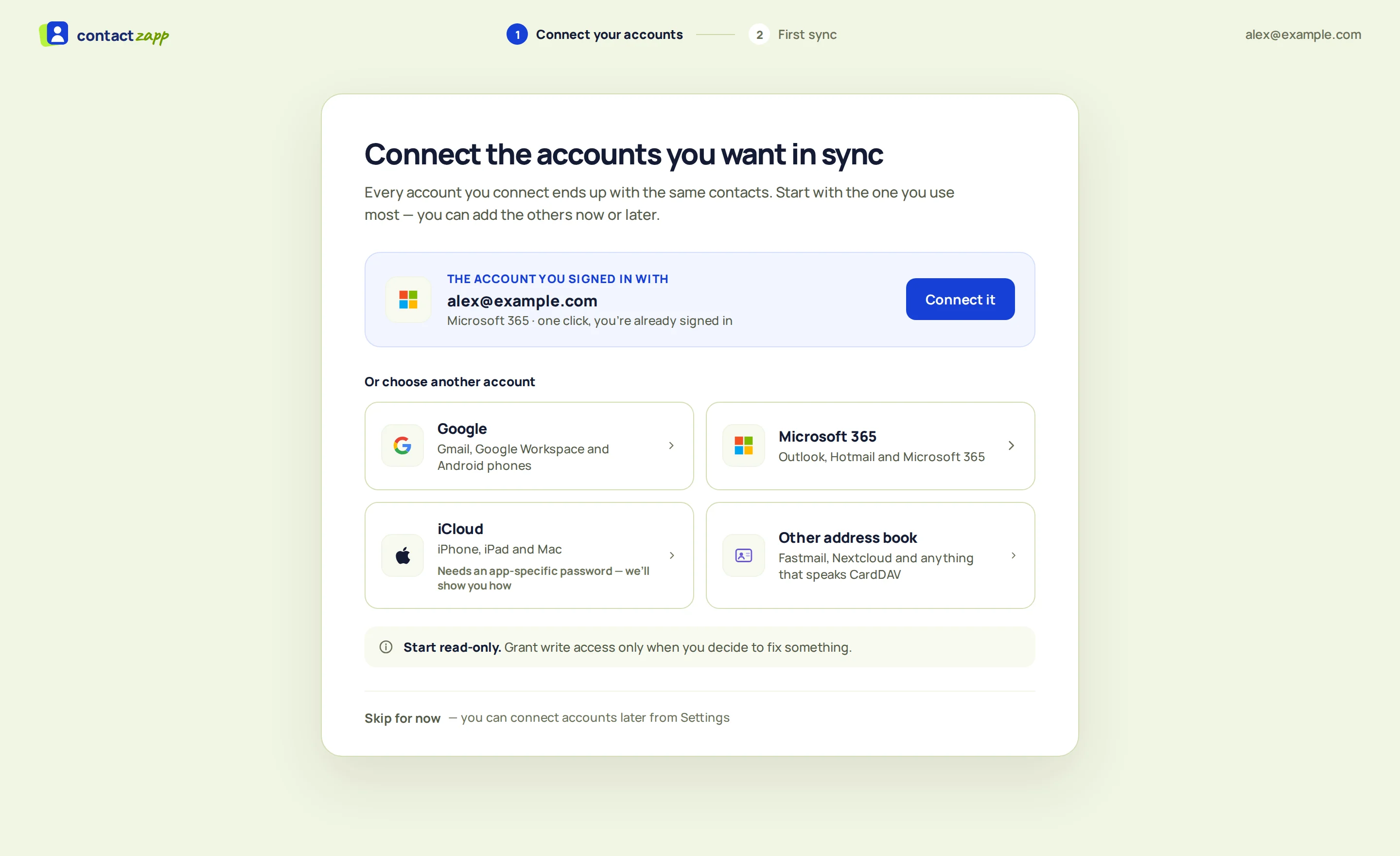
Connect your Google account
Choose Google and sign in. ContactZapp reads the account and sends changes to it. You can make any account read-only.
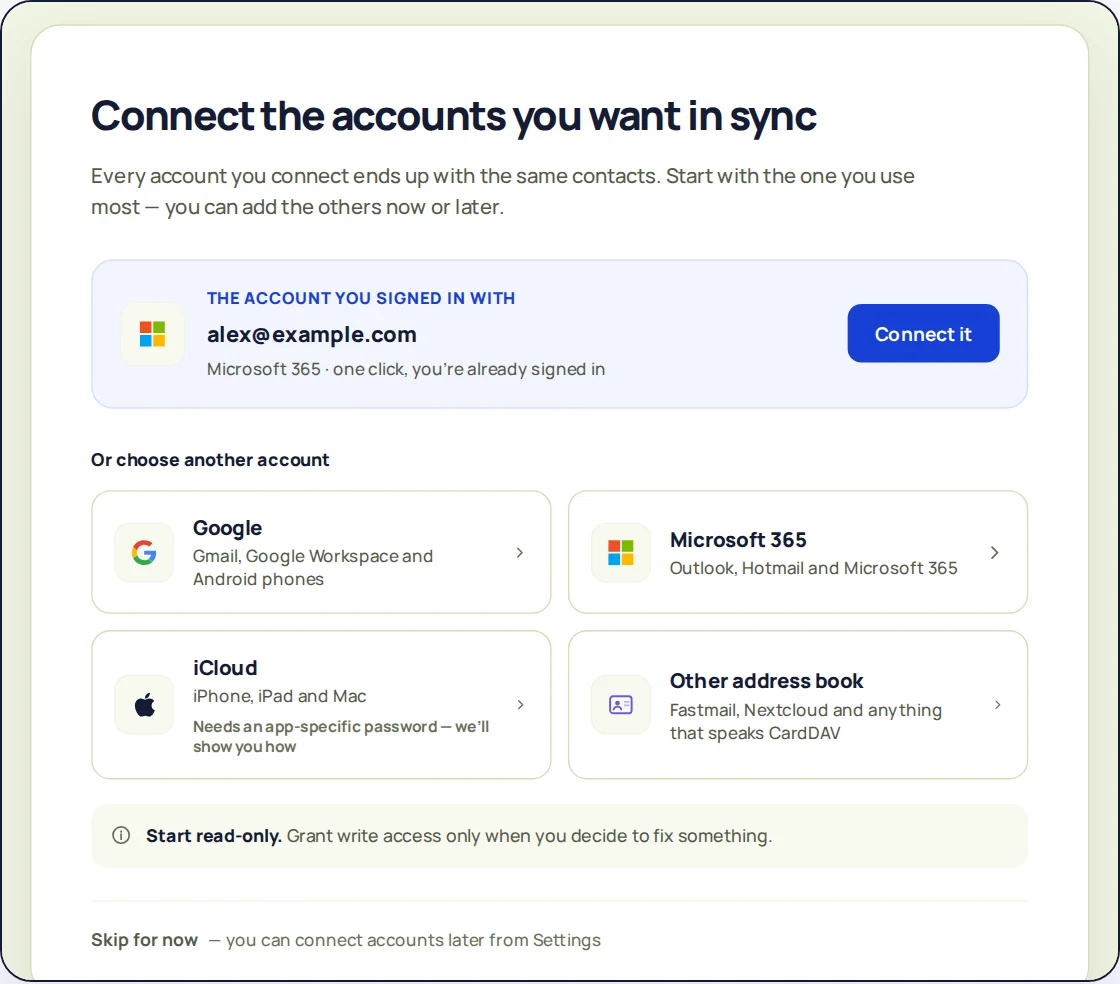
Connect each account. You can make any of them read-only. Connect Microsoft 365
Do the same with your work account. If your company manages it, your administrator may need to approve the connection first.
Review the duplicates
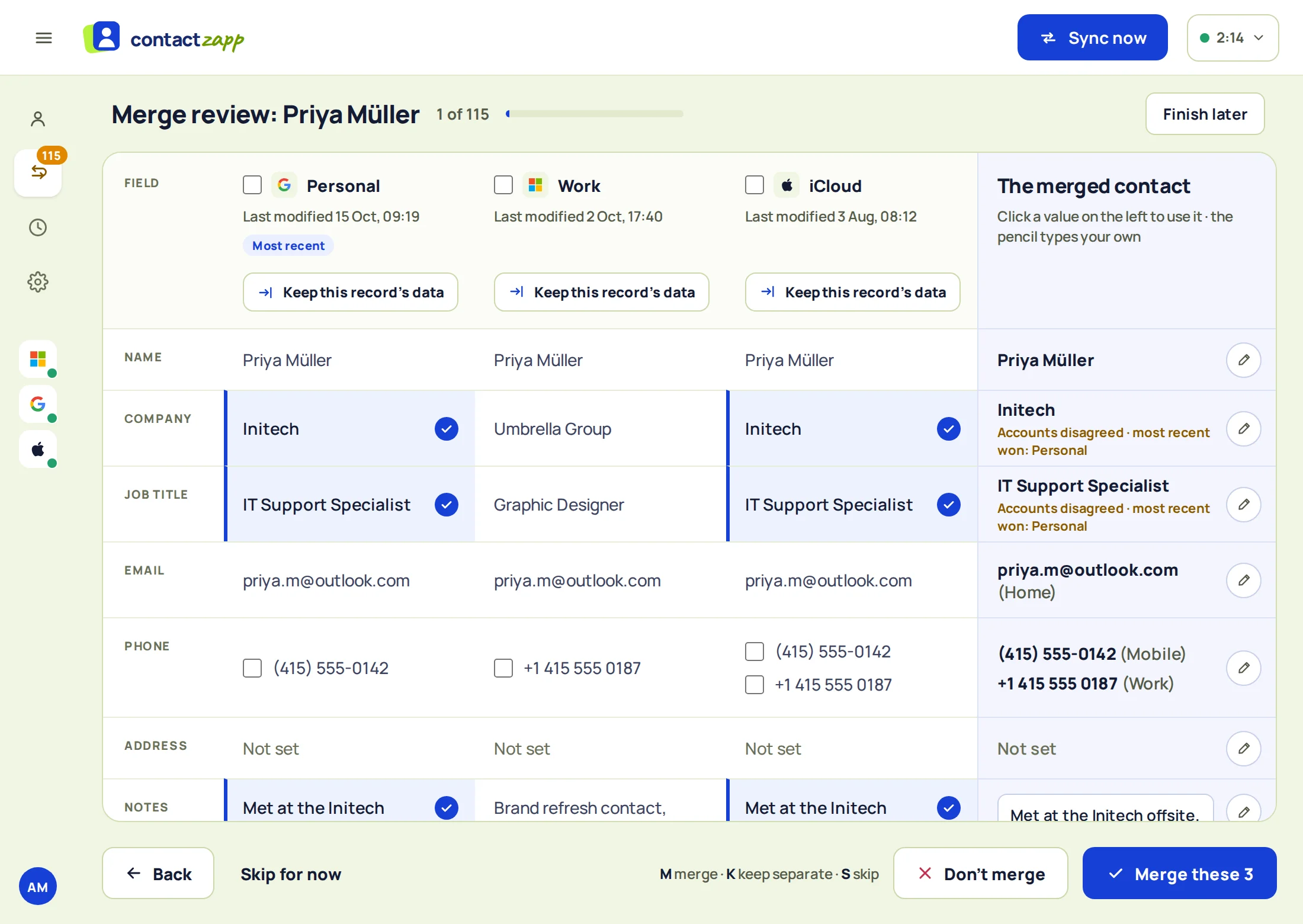
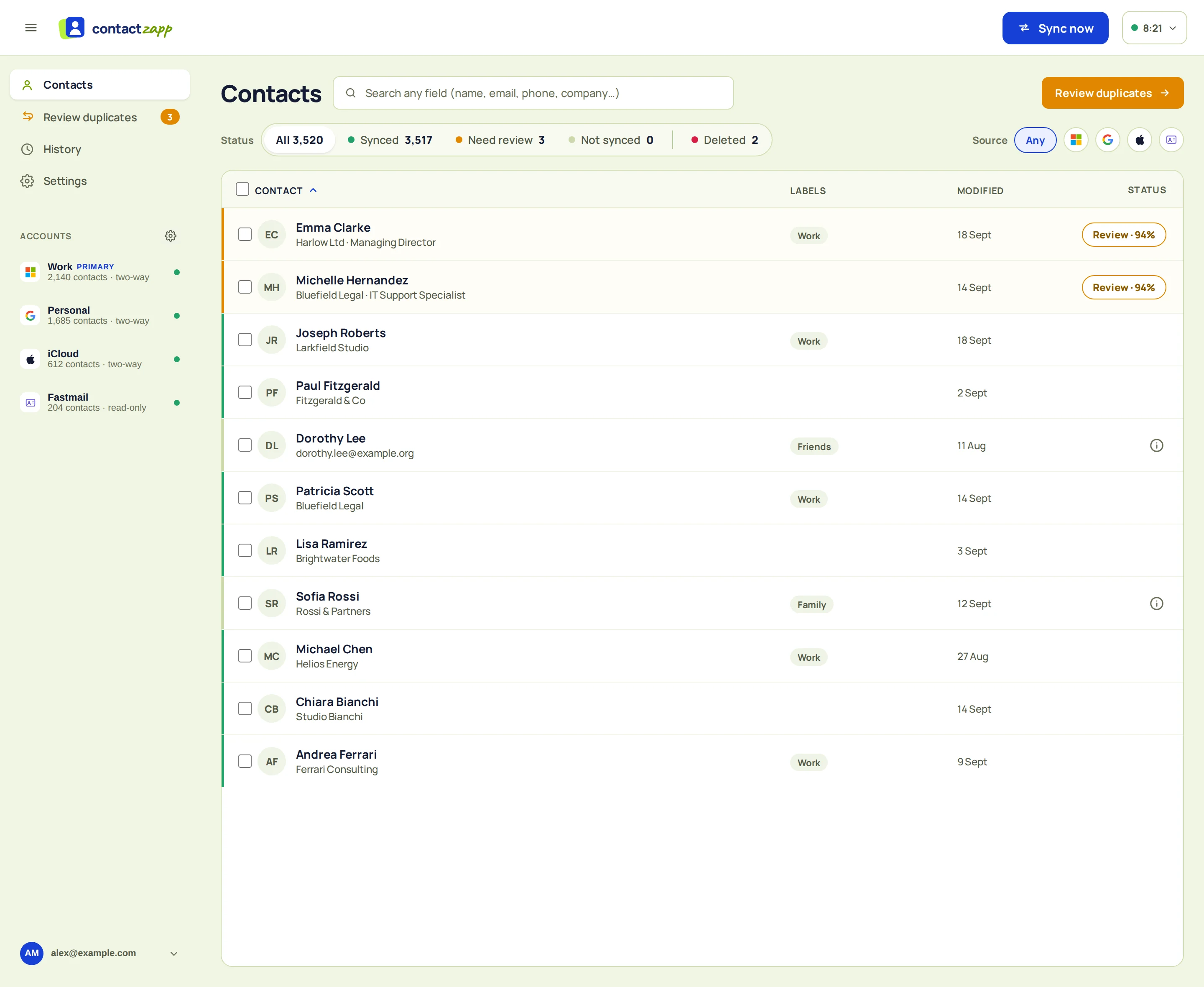
ContactZapp looks for the same person by name, email, phone and address. Auto-Merge is off until you turn it on. To merge by hand, we show the contacts side by side and suggest the values to keep. Or choose Don't merge.
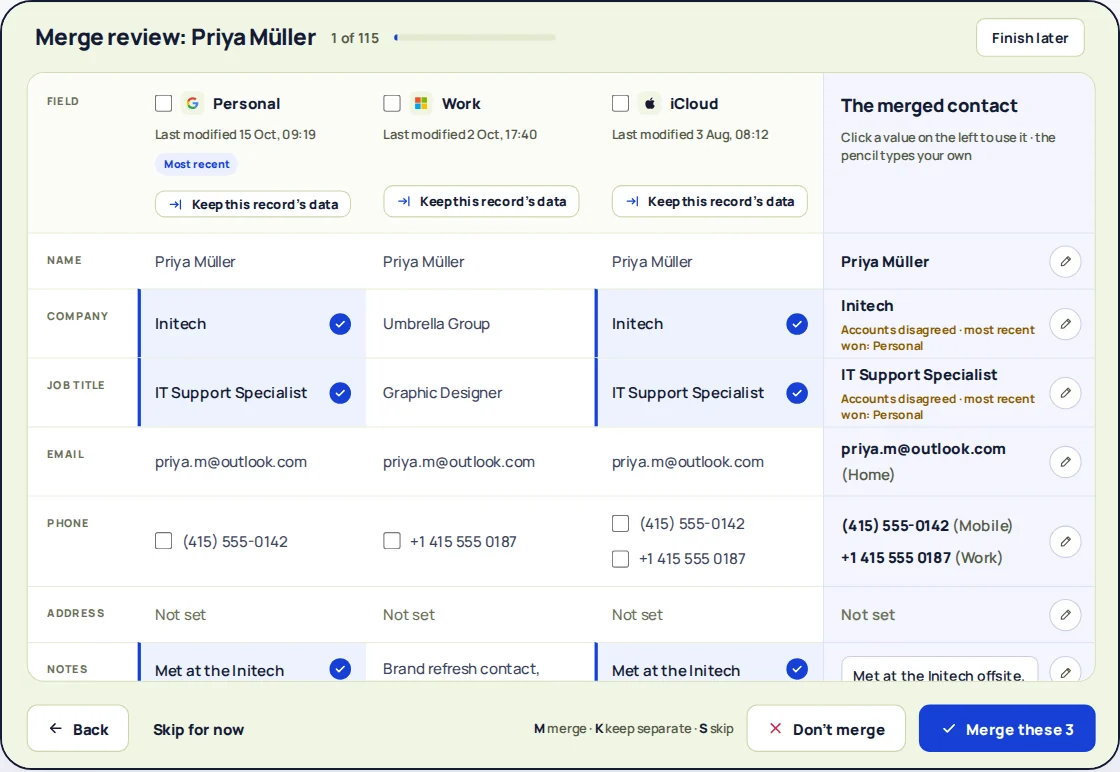
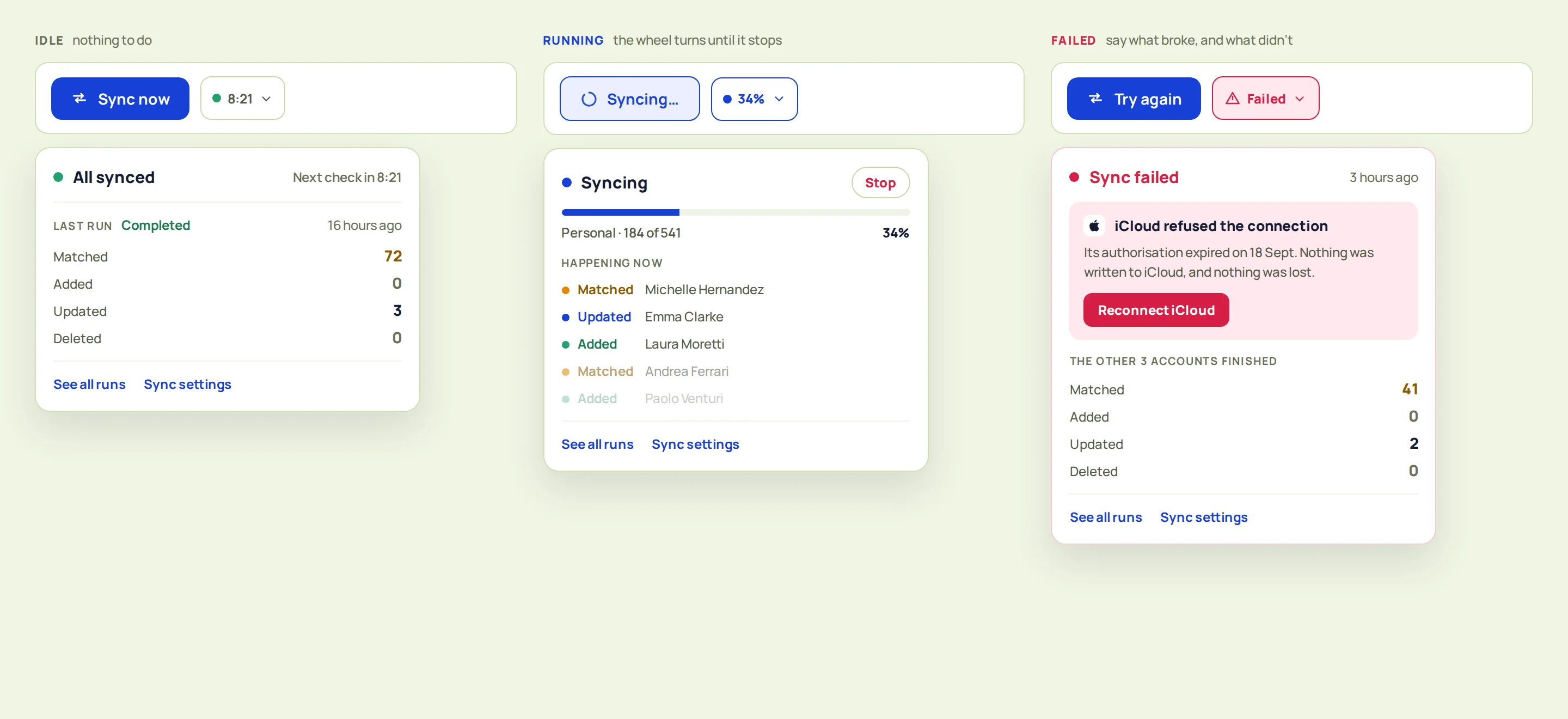
Review shows the duplicates side by side. You choose which values to keep. Choose how often to sync
Choose hourly, daily or only when you ask. One setting covers all your accounts. It starts on manual. At each sync, a change in either account reaches the other.
What to check after the first sync
ContactZapp keeps all your fields. They sync to every account that supports them. They include names, emails, phone numbers, addresses, company, job title, birthday, notes, websites and labels. A merged contact keeps every phone number, email address and postal address.
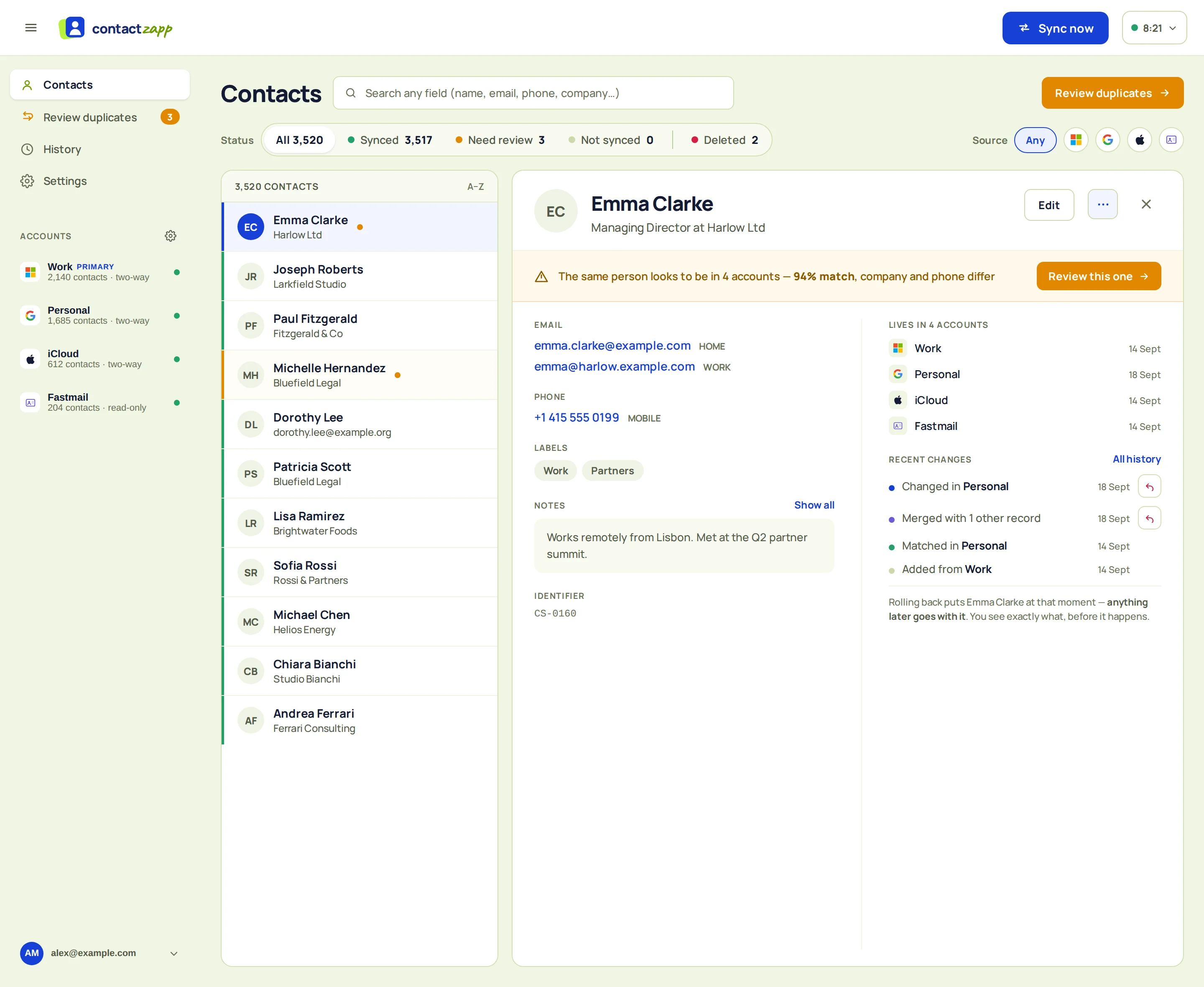
The first run is the one worth a look. Here is what you might see and what it means:
| If you see | It means |
|---|---|
| A field with two different values | For a single value, such as the company, the most recent change wins. You can make one account always win instead. |
| A contact in only one account | It is added to your other accounts at the next sync. |
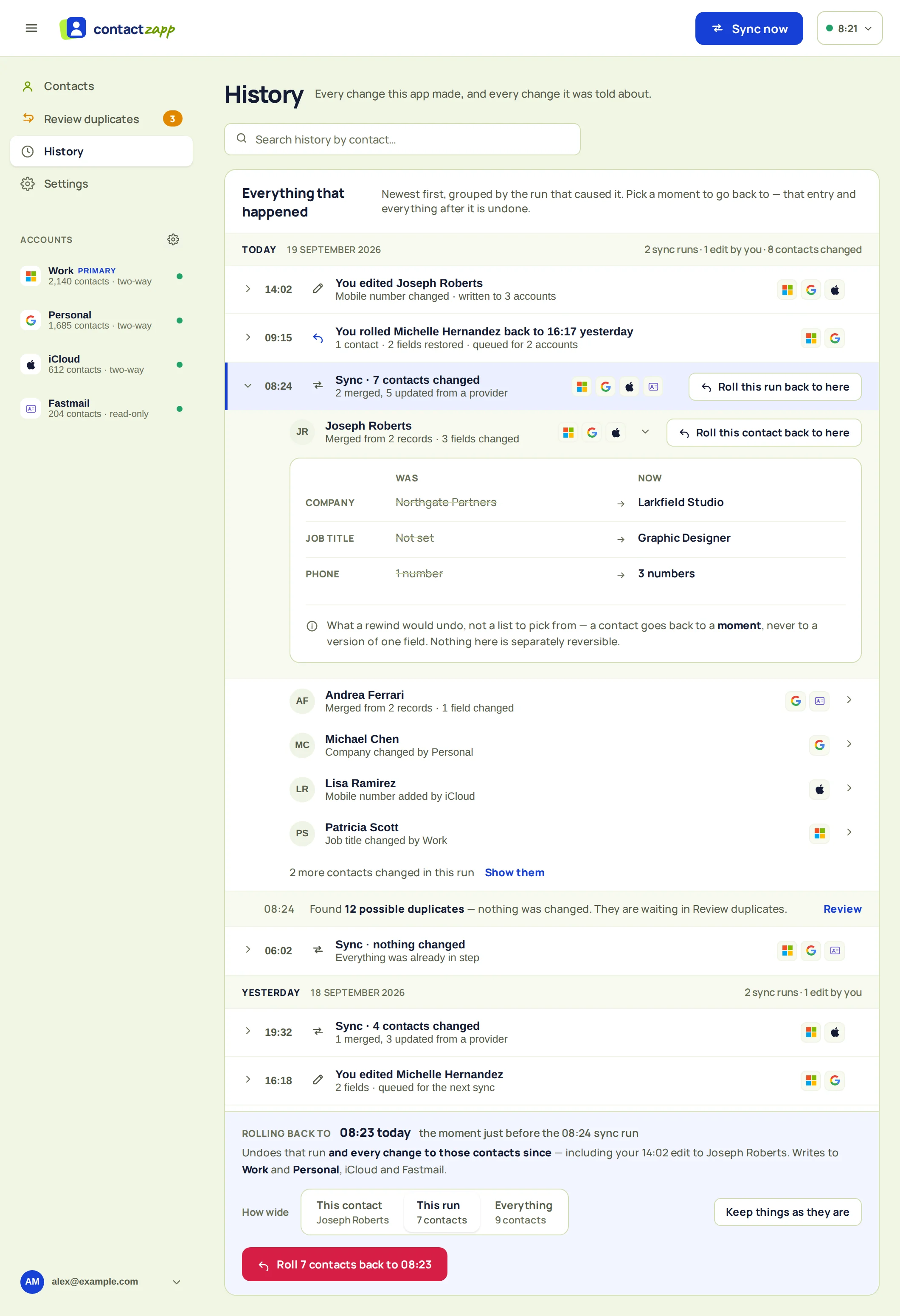
| A merge you didn't want | Undo it from History, for one contact or the whole run. You can undo for 12 months. |
The FAQ has more on accounts that disagree. The features page lists what syncs.
The short version
Google and Microsoft 365 do not sync contacts with each other by default. A CSV export works once. Google's Outlook add-in syncs a Google Workspace account with Outlook on Windows. To keep both accounts current, use a sync that finds duplicates. It should also let you undo what it did.
FAQ
Does Google sync contacts with Microsoft 365? Not by default. Google and Microsoft do not sync contacts with each other. Google makes an add-in that syncs a Google Workspace account with Outlook on Windows.
Does a CSV export keep my contacts up to date? No. A CSV file is a copy from the day you export it. Later edits in either account do not reach the other. Importing the file again can add every contact a second time.
How often does ContactZapp sync? Hourly, daily or only when you ask. You choose in Settings › Sync, and the choice applies to all your accounts. It starts on manual.
What if two accounts have different values for the same contact? Phone numbers, email addresses and postal addresses are all kept. For a field with one value, such as the company, the most recent change wins. You can make one account always win instead.
Can I undo a merge? Yes. You can undo any merge for 12 months.
Does this work with the free plan? Yes. Connect 2 accounts of any size and see all your contacts and duplicates, with no time limit and no card. The free plan syncs 100 contacts between your accounts. Upgrade to sync the rest.